Connecting Lumos to Google Cloud Platform (GCP)
Last updated: March 20, 2026
Follow the steps below to enable Lumos to securely access and audit your Google Cloud environment. This integration allows Lumos to surface permission insights and user access visibility across your GCP organization.
✅ Step 1: Delegate Access to Lumos
Go to: Google Admin SDK Delegation
Click "Add new"
Enter the following Client ID:
103971392043253917010Copy and paste the following OAuth Scopes:
https://www.googleapis.com/auth/cloud-platform
🔐 Step 2: Set Up Permissions in Google Cloud Console
Navigate to: your Google Cloud Console, and go to IAM & Admin.
Create a new custom role with the following permissions:
cloudasset.assets.listAccessPolicy
cloudasset.assets.listIamPolicy
cloudasset.assets.listOrgPolicy
cloudasset.assets.listResource
iam.serviceAccounts.list
recommender.iamPolicyInsights.get
recommender.iamPolicyInsights.list
resourcemanager.folders.get
resourcemanager.folders.list
resourcemanager.organizations.getIamPolicy
resourcemanager.organizations.get
resourcemanager.projects.get
resourcemanager.projects.getIamPolicy
resourcemanager.projects.list
Assign the custom role to Lumos’s service account:
googlecloudintegration@lumos-gcloud-integration-prod.iam.gserviceaccount.com
🚨 Troubleshooting Role Assignment
If the custom role doesn’t appear when assigning it to the service account:
Ensure your account has the Organization Role Administrator role at the org level.
Confirm the custom role’s launch stage is set to at least Beta or General Availability.
🏢 Step 3: Provide Your Organization ID
In the Google Cloud Console, click the resource drop-down menu in the top left corner.
Copy your Organization ID – an alphanumeric string like
123456789.Enter this Organization ID into the required field in your Lumos setup flow.
👤 Step 4: Provide Admin User Email
Lumos will use an Admin User Email to impersonate and access endpoints that require Organization-level admin permissions.
For auditability, we recommend creating a dedicated service account email with Organization Admin permissions, specifically for Lumos use.
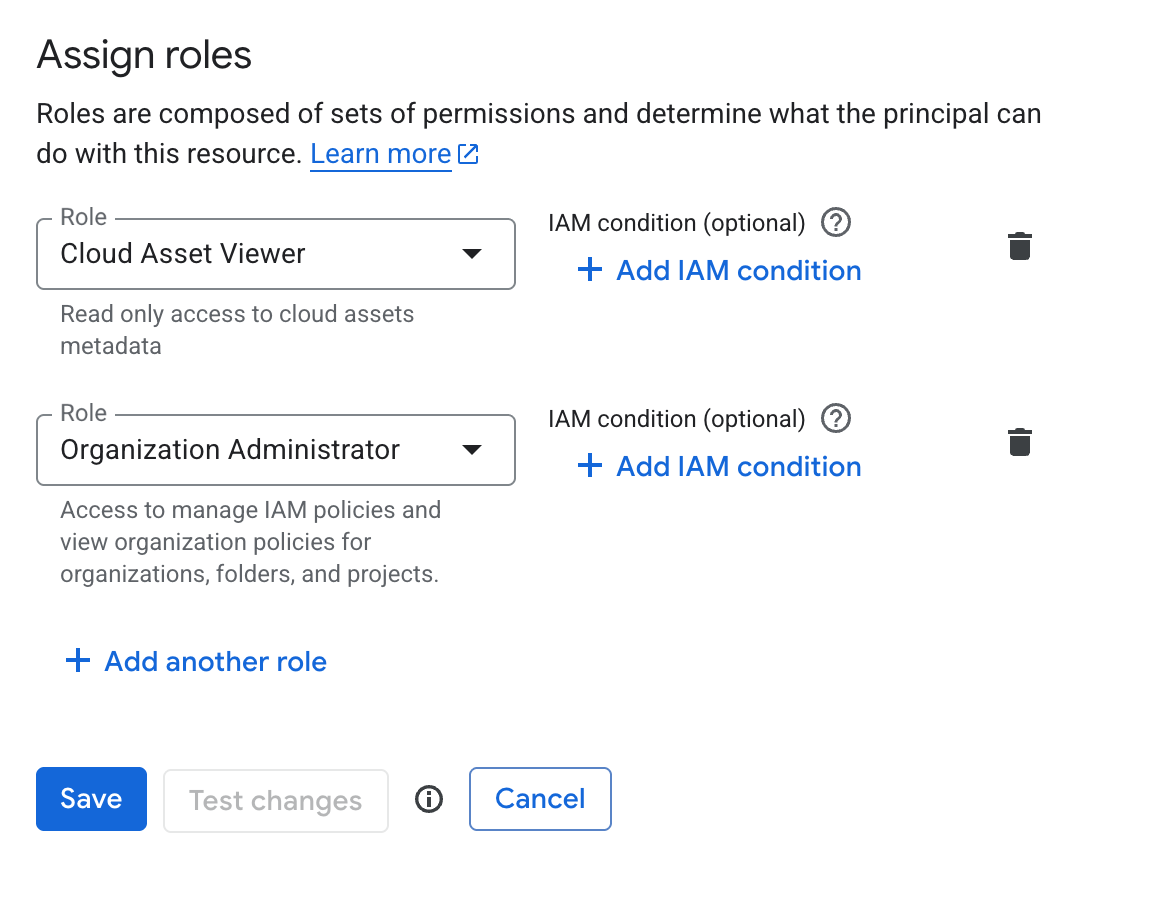
In GCP, this Admin User Email will need Cloud Asset Viewer and Organization Administrator roles assigned at the Org level:
👥 User Access Visibility
Lumos will display which users have access to which projects within your GCP organization. This does not imply access to the entire organization — only to specific resources where they have permission.
Need Help?
If you encounter any issues or have questions, reach out to support@lumos.com or contact your Lumos representative.