Connecting Microsoft 365 / Entra ID
Last updated: May 2, 2026
After this article...
You'll be able to connect the Microsoft 365 / Entra ID integration to Lumos and resolve common issues that arise when connecting.
Required plan & roles
There's no required Microsoft plan to connect this integration.
Your Microsoft user should have access to the admin panel, specifically a role to create an enterprise application.
The Global Administrator role is required to connect the integration.
Before you begin
Allow Lumos to get employee usage data for Microsoft products by following the steps below.
Go to the Microsoft 365 admin center.
Go to Settings > Org Settings > Services.
Select Reports.
Un-check "Display concealed user, group, and site names in all reports" and click Save.
There are limitations to the activity data Lumos can get from Microsoft 365 / Entra ID. For more info on how Lumos shows you Microsoft 365 / Entra ID activity, check out this article: Interpreting Microsoft 365 / Entra ID Last Activity
Instructions
1. Find the Microsoft 365 / Entra ID card in your Lumos integrations (Reconnect or add new)
2. Click on the card, make sure you've completed the steps above ("Before you begin"), then click Connect Microsoft 365 / Entra ID.
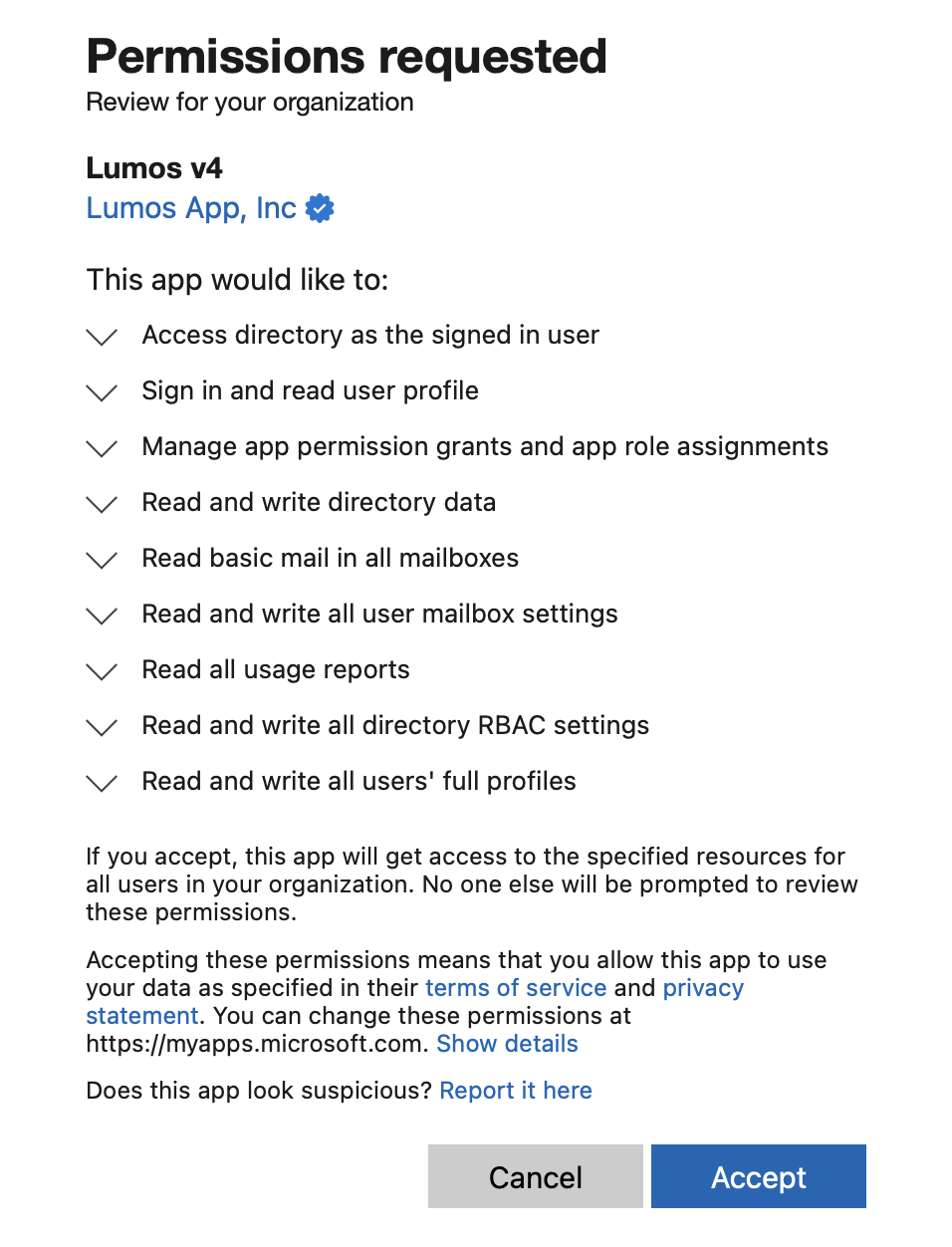
3. You'll be prompted to Accept scopes via OAuth:
4. You’re finished! ✅
Scopes
Scope | Required | Description |
User.Read | ✅ | Sign in and read user profile. Allows the application to sign in the user and read the user's profile information. |
Directory.AccessAsUser.All | ✅ | Access directory as the signed-in user. Allows the application to access the directory as the signed-in user. This includes permissions to perform any operation that the signed-in user has privileges to perform within the directory. |
User.ReadWrite.All | Optional | Read and write all users' full profiles. Allows the app to read and update user profiles without a signed in user. |
Mail.ReadBasic.All | Optional | Read basic mail in all mailboxes. Allows the app to read basic mail properties in all mailboxes without a signed-in user. Includes all properties except body, previewBody, attachments and any extended properties. |
Directory.ReadWrite.All | Optional | Read and write directory data. Allows the app to read and write data in your organization's directory, such as users, and groups, without a signed-in user. Does not allow user or group deletion. |
AppRoleAssignment.ReadWrite.All | Optional | Manage app permission grants and app role assignments. Allows the app to manage permission grants for application permissions to any API (including Microsoft Graph) and application assignments for any app, without a signed-in user. |
MailboxSettings.ReadWrite | Optional | Read and write all user mailbox settings. Allows the app to create, read, update, and delete user's mailbox settings without a signed-in user. Does not include permission to send mail. |
Reports.Read.All | ✅ | Read last login for Microsoft 365 / Entra ID Allows the application to read all reports related to activity, usage, and insights across various Microsoft 365 services. |
AuditLog.Read.All | ✅ | Read last login for managed apps Grants the application access to audit logs that track user and system activities across Microsoft 365 / Entra ID and connected apps. |
LicenseAssignment.ReadWrite.All | Optional | Allow assigning and unassigning access to product licenses in Microsoft 365 / Entra ID. |
How to connect Microsoft 365 / Entra ID as Read-Only?
By default, Lumos gets "write' Access. While you can’t selectively choose scopes during the initial integration setup, you can revoke specific scopes after connecting. See more info here.
Alternatively, you can connect with read-only permissions. To use Lumos with read-only permissions, reach out to support.
Note you will be unable to provision new accounts or manage access.
User and Access Management Capabilities
Functionality | Type | Sync | Provision | Description |
Users | Account | ✅ | ✅ | User account records |
Roles | Permission | ✅ | ✅ | Roles in EntraID |
Groups | Permission | ✅ | ✅ | Groups in EntraID |
Microsoft 365 Groups | Permission | ✅ | ✅ | Groups in Microsoft365 |
Mail Enabled Security Group | Permission | ✅ | ❌ | Mail enabled security groups in Microsoft365 |
Distribution Group | Permission | ✅ | ❌ | Distribution groups in Microsoft365 |
Product | Permission | ✅ | ❌ | Product access |
License | Permission | ✅ | ✅ | Licenses |
AppStore | Offboarding | Access Reviews | License Management |
✅ | ✅ | ✅ | ✅ |
FAQ
Can I connect the Microsoft 365 / Entra ID integration using a Service Principal?
This is not currently supported today.
Do I need to reconnect the integration to get Last Login data for my managed applications?
If you have not yet granted the AuditLog.Read.All permission, you will need to reconnect the Microsoft 365 / Entra ID integration in Lumos. Once connected, Lumos will automatically sync last login data for all managed applications
Can I change the authenticated Microsoft 365 / Entra ID user for the Lumos integration?
Lumos uses Microsoft's Client Credentials Flow in order to authenticate to the Microsoft 365 / Entra ID/Microsoft Graph APIs, so we can only access your data on behalf of the "Lumos" Microsoft Enterprise Application.
The initial connection flow that you go through to connect the integration simply grants Admin consent to the application itself, but does not bind authentication to a specific user, so connecting with a dedicated service account should not be necessary to maintain stability of the integration.
Will Lumos impact our Microsoft rate limits?
The documentation for Microsoft Graph specifies that all of the services we interact with in a resource-intensive way via API have service usage limits that apply per app, not across all apps.
That means that Lumos' API requests to your environment could get throttled, but this would not affect requests made by any other app, including any of your own or your user's day-to-day use of email and other Microsoft services.
Below is the throttling documentation for the services Lumos interacts with for application discovery.
How does Lumos manage against rate limits?
As mentioned above, all of our resource-intensive requests are throttled on a per-app basis. That means that Lumos gets throttled if we run into rate limits, but your internal systems and users should remain free to make requests without issues.
We're able to manage throttling by using the "Retry-After" HTTP header and using backoff mechanisms.
If you're concerned that Lumos is impacting your rate limits, you can revoke permissions for Lumos by going to the Enterprise Applications in your Office 365 tenant.