Connecting Workday
Last updated: September 3, 2026
Background
This article walks through the steps for connecting Workday to Lumos and helps you resolve common setup issues.
Required plan & roles
There's no minimum plan required to connect the Workday integration.
The specific permissions required by the Workday integration user account are outlined in further detail in the setup steps below.
Workday Steps
The section below walks through the steps you need to take in Workday to connect it to Lumos.
Stage 1: Create an Integration System User.
It's highly-recommended that you connect Workday to Lumos with an Integration System User. To create the user, follow the steps below:
Visit the Create Integration System User page in Workday (find it via the search bar)
Click the Create Integration System User button.
Enter a User Name (such as "Lumos-ISU") and create a strong password for the account, then click Ok.
Stage 2: Add the Integration System User to a Security Group.
Once you've created the ISU, you need to add it to a Security Group by following the steps below.
Visit the Create Security Group page in Workday (find it via the search bar)
Click the Create Security Group button.
In the Type of Tenanted Security Group dropdown, select “Integration System Security Group” and enter a name, such as "Lumos Security Group".
On the Edit Integration System Security Group (Unconstrained) page, enter the name of the ISU you created in Stage 1 above (e.g. “Lumos-ISU”), then click Ok.
Stage 3: Set Policy Permissions
Click into the Security Group you created in Stage 2 and select "Domain Security Policy Permissions".
The integration requires read access to all the listed permissions. In order to provision back to Workday, additional permissions are required. Ensure these are added as Integration Permissions, not Report/Task permissions:
Permission Name |
Person Data: Name |
Person Data: Work Contact Information |
Worker Data: Workers |
Worker Data: All Positions |
Worker Data: Current Staffing Information |
Worker Data: Public Worker Reports |
Worker Data: Employment Data |
Worker Data: Organization Information |
View: Supervisory Organization |
Worker Data: Business Title on Worker Profile |
Worker Data: General staffing information |
Worker Data: Active and terminated workers |
Workday Accounts |
User-Based Security Group Administration - Contact Lumos if you want to omit, required otherwise |
Security Configuration |
Integration Security - Required for syncing ISU's, optional otherwise |
Get and Put: Person Data: Personal Data - Required for updating username in Workday, optional otherwise |
Get and Put: Person Data: Work Contact Information - Required for updating emails in Workday, optional otherwise |
|
|
In order to provision attributes (email, username) to workday, ensure that there is:
Domain Security Policy: Modify Access to:
Person Data: Personal Data
Person Data: Work Contact Information
Workday Accounts
Domain Security Policy: Put Access to:
Person Data: Personal Data
Person Data: Work Contact Information
Workday Accounts
Provisioning back to Workday also requires updating a process in Workday: Change Work Contact Information .
Search for Edit Business Process Security Policy
From here, search for the policy
Work Contact ChangeSelect the policy
Enter edit mode
Find the entry with the initiating action being
Change Work Contact Information (Web Service)Add the security group created for the integration
Click Save
Search for Activate Pending Security Policy Changes in the search bar and approve the changes you just proposed.
Stage 4: Create an API Client for the integration
Next, you'll create a Workday API Client to use in Lumos.
Visit the View API Clients page in Workday (find it via the search bar).
Click the Register API Client for Integration button and fill out the form that appears with the info from the table below.
Securely store the generated Client ID, Client Secret, Workday REST API Endpoint, Token Endpoint, and Authorization Endpoint.
Next, select Action > API Client > Manage Refresh Tokens for Integrations.
For the Workday Account, select the ISU user that you created in stage 1.
Generate a new Refresh Token and securely store the value.
Field | Value |
Client Name | Lumos Integration |
Grant type | Authorization Code Grant |
Access token | Bearer |
Disabled | (Make sure the box is unchecked) ❌ |
Non-Expiring Refresh Tokens | (Make sure the box is checked) ✅ |
Scope (Functional Areas) | Make sure to select:
|
Include Workday Owned Scope | (Make sure the box is checked) ✅ |
Stage 5: Workday Public SOAP API Access
At this stage, you'll be determining where Lumos can make calls to your tenant over the internet.
Visit the Public Web Services page (find it via the search bar).
Open the Public Web Services Report.
Hover over Human Resources and click on the three dots menu.
Click Web Services > View WSDL.
Within the WSDL, there should be a URL with a format like
https://{domain}/ccx/service/{tenant}/hcm
. Securely store thedomainandtenantvalue for later.
Lumos Steps
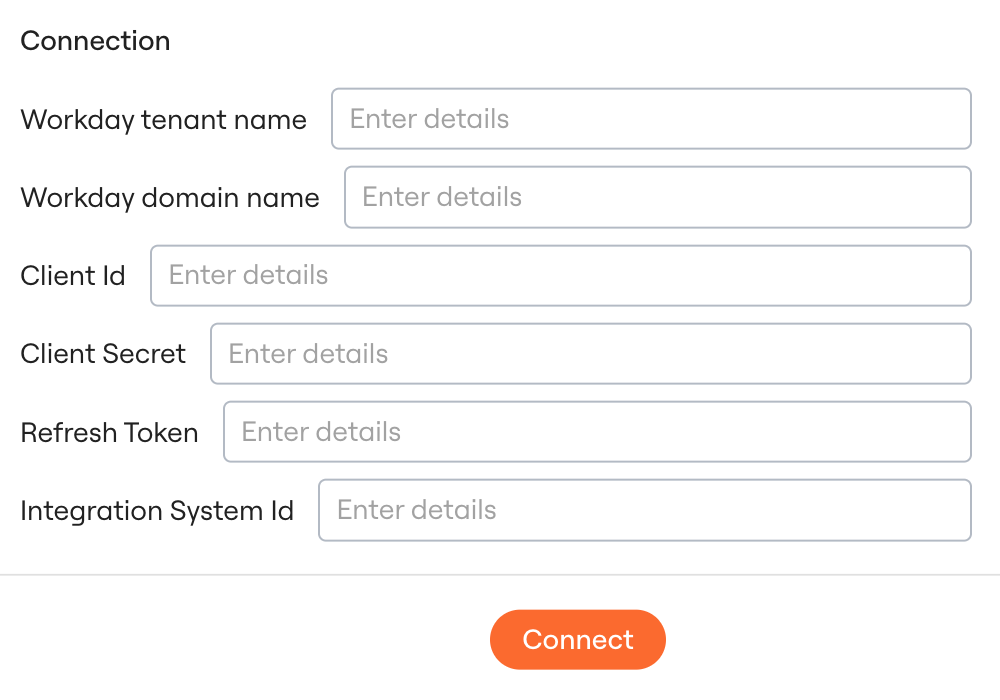
1. Click on the Workday card in your Lumos integrations (Reconnect or add new).
2. In the Connection section, enter the following values:
Workday tenant name: The tenant name from Stage 5 above.
Workday domain name: The domain name from Stage 5 above.
Client ID: The client ID from Stage 4 above.
Client Secret: The client secret from Stage 4 above.
Refresh Token: The refresh token from Stage 4 above.
Integration System ID: If applicable
After the connection fields, the following options control what Lumos syncs alongside workers. All are off by default.
Sync Integration Service Users: Syncs Workday integration users into Lumos as accounts. They appear in user lists and Access Reviews.
Sync Implementers: Syncs Workday implementer accounts into Lumos.
Sync Org Scoped Roles: Syncs each role scoped to its organization as a separate entitlement, in addition to the plain role.
3. Click Connect to connect the integration.
Connection Video
View the connection video here as an additional reference to connect.
Reconnecting Caveats
When reconnecting Workday, certain fields must remain the same:
Integration System ID
Workday Tenant Name
Workday Domain Name
If the setup requires changes to any of those fields, connect a new integration instead of reconnecting this one.
FAQ
What is an Integration Field Override? How do I sync in more data than the standard fields Lumos provides?
In order to use this functionality, reach out to Lumos Support. The Integration System ID must also be provided when configuring the integration.
Lumos allows configuring Integration Field overrides in Workday for the Integration Service User used in the setup. To sync additional fields:
Prefix the field with
Lumos_Field_Future Lumos syncs will now fetch those fields
Lumos optionally fetches predefined overrides that may exist in your environment:
Workday Field Descriptor | Lumos Field Name |
Termination_Date | termination_date_field_override |
Last_Day_Worked | last_day_worked |
Is_Manager | is_manager |
Manager Name | supervisory_org |
Department | override_department |
Job Family | override_job_family |
Job Family Group | override_job_family_group |
What fields do you need from Workday's API?
We are ingesting the following fields from the Worker_Data payload in the Get_Workers operation.
Which integration users does Lumos sync?
With Sync Integration Service Users enabled, Lumos reads integration users from two places in Workday.
The first is Get_Integration_System_Users. It returns only integration system users associated with an Integration System. If Workday flags an account as an integration user but it has no such association, this operation does not return it. That account does not reach Lumos through this path.
The second reads Workday's Is Integration User field through Workday Query Language. This source ignores Integration System association and the Integration System Id field on your connection. It returns the integration users the first path misses, and it requires the Workday Query Language permissions in Stage 3.
Lumos enables the second source, rather than a setting on your connection. Reach out to Lumos Support to turn it on for your tenant.
Once it is on, Lumos syncs the full set of accounts Workday flags as integration users, including inactive ones. Sync Implementers controls implementer accounts separately, and this change does not affect them.
How do I configure field overrides?
Follow this document for step by step instructions on how to enable Lumos to sync any custom attribute from Workday.