Using SCIM for User Provisioning With Okta
Last updated: April 21, 2026
Overview
Enabling System for Cross-domain Identity Management (SCIM) for user provisioning in your Lumos tenant ensures that users created in your identity provider (IdP) are automatically and instantly available in Lumos. No more waiting for a full sync to run. 🏃♀
This guide will walk you through configuring SCIM for your Lumos Okta tile.
Requirements
You must have permissions in Okta to edit your Lumos tile
You must be an Organization Admin in Lumos. See Lumos Roles
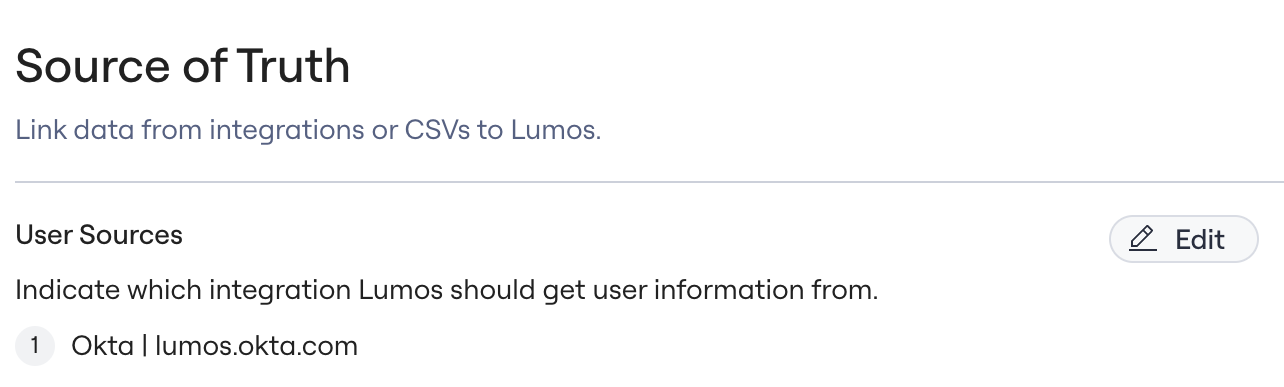
You must have integrated Okta (Connecting Okta) in your Lumos tenant, and it must be your first User Source. See Importing User Sources
You must have only one Okta tenant integrated in your Lumos environment. If you have multiple tenants of Okta connected, SCIM provisioning will always fail.
SCIM provisioning only works if a user's Okta login/username exactly matches their email address. If the username and email address do not match exactly, SCIM provisioning will fail.
Supported Features
To App
Create Users
Update User Attributes
Deactivate Users
Attribute Mappings
userName
givenName
familyName
email
title
To Okta
N/A
Configuration Steps
1. Generate a Lumos API key
In Lumos, navigate to Settings > API Tokens and generate a new API token. We recommend that the naming and description of this token make it clear that the token is being used for SCIM.

Once you've generated this token, hold on to it until a later step. Do not share this token with anyone!

2. Configure Provisioning Method on Okta Tile
In the Okta Admin portal, navigate to your Lumos app. Go to General > App Settings > Edit and configure the Provisioning to be "SCIM" then click Save.

3. Configure the SCIM connection on Okta Tile
In the configuration for your Lumos Okta tile go to Provisioning > Integration and click Edit. Enter the following details:
SCIM connector base URL: https://api.lumos.com/scim/v2
Unique identifier field for users: userName
Supported provisioning actions: "Push New Users" and "Push Profile Updates"
Authentication Mode: HTTP Header. In the HTTP Header section, paste your Lumos API key in the "Bearer" field.
Our SCIM integration currently pushes new users created into Lumos, updates user statuses when they change in the IdP, and updates a user's Team or Title in Lumos. See Importing Team Data and Importing Title Data
Manager or custom attribute changes are not supported today.

4. Test the Connection
On the same page from the previous step, click "Test Connector Configuration". Verify that "Create Users" and "Update User Attributes" are healthy.

Click Save once you've verified the connection is healthy.
5. Configure Okta To App Settings
In the Provisioning tab of your Lumos Okta tile, click on Settings > To App and click Edit. Ensure that "Create Users", "Update User Attributes", and "Deactivate Users" are selected and click Save.

6. Provision Existing Users
Chances are, you already have users assigned to Lumos via your Okta tile. After configuring SCIM, you'll need to do a one-off "Provision Users" step. This is indicated by red exclamation marks next to users in your Assignments tab. Click on Provision User, which will kick off a job that "matches" your existing Lumos Okta assignments to SCIM users.

7. Good to go!
SCIM 2.0 should now be configured for User Provisioning. You can verify this by assigning a new Okta user to Lumos. You should see the new user immediately in your Lumos Users page.
FAQs
I want users to show as inactive in Lumos as soon as they show as inactive in Okta. Can this feature help?
Yes! Our SCIM integration will make new Okta users show up in Lumos almost instantly as well as make suspended or deactivated Okta users show up as suspended or inactive in Lumos.
Known Issues and Troubleshooting
Multiple Okta Integrations Found
Failure: Bad request. Errors reported by remote server: Multiple Okta integrations found.This is due to having multiple Okta integrations in Lumos. At this time, you cannot enable SCIM in Okta if you have multiple Okta tenants in Lumos. This is currently a Lumos restriction.
Unsupported Attributes
Currently, Lumos supports mapping the userName, givenName, familyName, email, and title attributes from Okta to Lumos. Please reach out to us if there are additional attributes you are interested in mapping to Lumos.
Groups
Lumos does not currently support pushing groups through SCIM (Push Groups). If this is a use case you are looking to leverage please reach out to us.
More Help Needed? Message us!
We are more than happy to assist with any issues you may run into while configuring SCIM. Please reach out to your Lumos Customer Success Manager or message in your shared Slack channel for help configuring and debugging SCIM.